Slideshow
Pictures for the TV, one at a time: the places the party passes, the faces they meet, a storm rolling in. Line them up before the session, then move on by hand or let a timer do it.
- Default size
- 6 × 6 (smallest 4 × 4)
- More than one
- Yes, each with its own pictures
- Players can see it
- Yes, the picture on screen, on the players' window
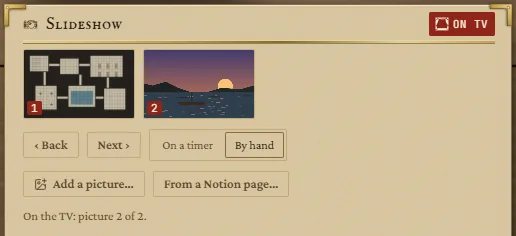
Adding pictures
- Add a picture… picks an image from this PC. The file stays where it is on disk.
- From a Notion page… takes the pictures from a page in your Notion.
- Drag the thumbnails to put them in order. A slideshow holds up to 50 pictures, each once.
Showing it
- Press the curtain button in the title bar and choose On the stage or Beside the stage. The button then reads On TV. See What can go on their screen.
- Choose how it moves on:
- On a timer: every 10, 20 or 30 seconds or a minute, with Pause. The timer runs in the players' window, so it keeps going while this board is out of sight.
- By hand: Back and Next.
It loops round from the last picture to the first. On the TV each picture fills the stage and fades into the next, with no controls showing. Only the picture on screen is sent; phones watching by the QR code fetch just that one.
The curtain button's menu also has As a handout…, to send the picture on screen to the players to keep (see Handouts).
Before the session, add the five pictures of the journey to the crypt and drag them into order. At the table press the curtain button, choose On the stage and set it to change every 30 seconds while the party travels. When they arrive, switch to Next by hand.