Guides / Widgets
Pop-out
When a site in a Web page tile opens a window of its own, such as Roll20's chat, it docks on the board as a Pop-out tile instead of floating loose on your screen.
- Default size
- 4 × 8 (smallest 3 × 3)
- Added by
- A web page, not the Add widget menu
- Works with
- Web page
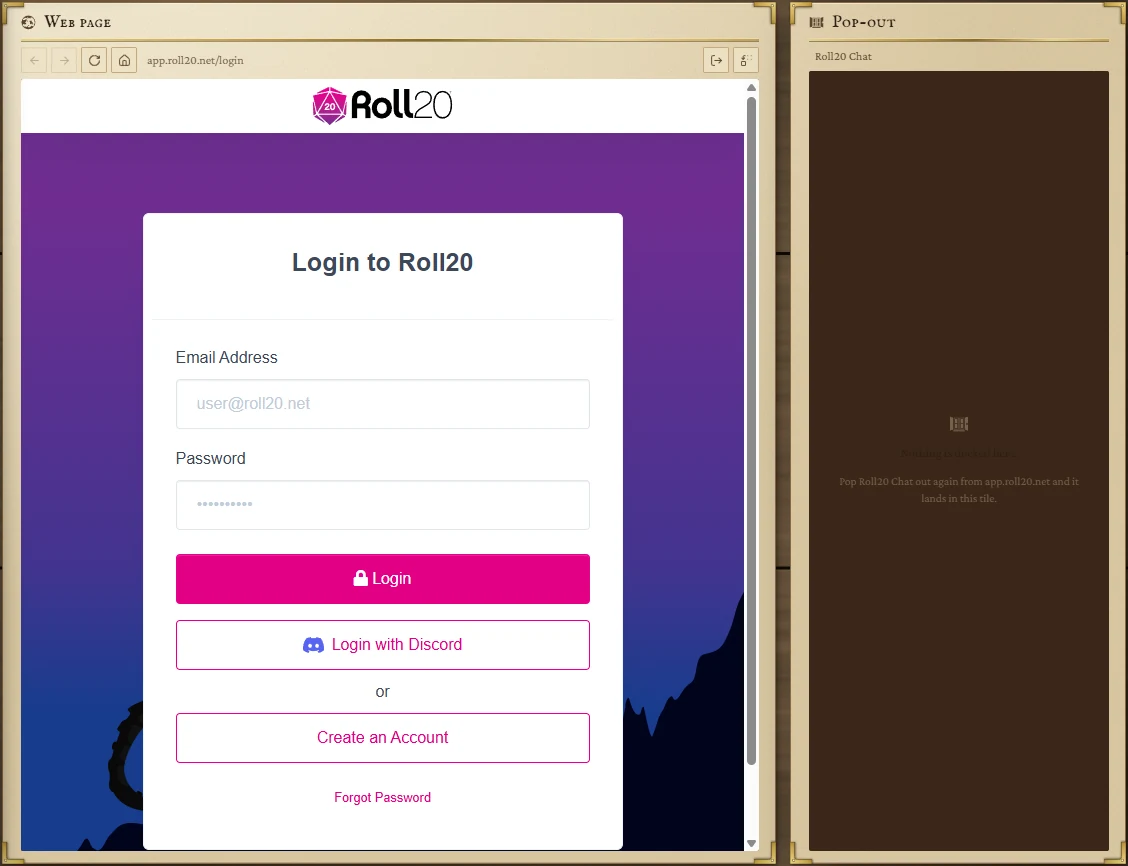
How one appears
You don't add a Pop-out from the menu. When a page in a Web page tile opens a new window on the same site (for example, popping out Roll20's chat or a character sheet), the board makes a Pop-out tile beside that web tile, as tall as it. Use it like the window it replaced.
If an empty Pop-out tile is already waiting for the same window, the page lands in that one instead of making another. Sign-in windows from other sites stay ordinary small windows.
Controls
| Button | What it does |
|---|---|
| Smaller text / Bigger text | Zoom the page from 50% to 200%. Ctrl + scroll over the page works too. |
| The percentage | Back to 100%. |
| Close it | Closes the window; the site takes it back (Roll20's chat returns to the main page). |
Things to know
- The docked page only lives while the app is running. After a restart the tile is empty and says what it is waiting for, for example Pop Roll20 Chat out again from app.roll20.net and it lands in this tile.
- While you arrange the board, the page steps aside and comes back when you press Done.
- The tile keeps its text size between sessions.
- Taking the tile off the board closes its page.