Notion
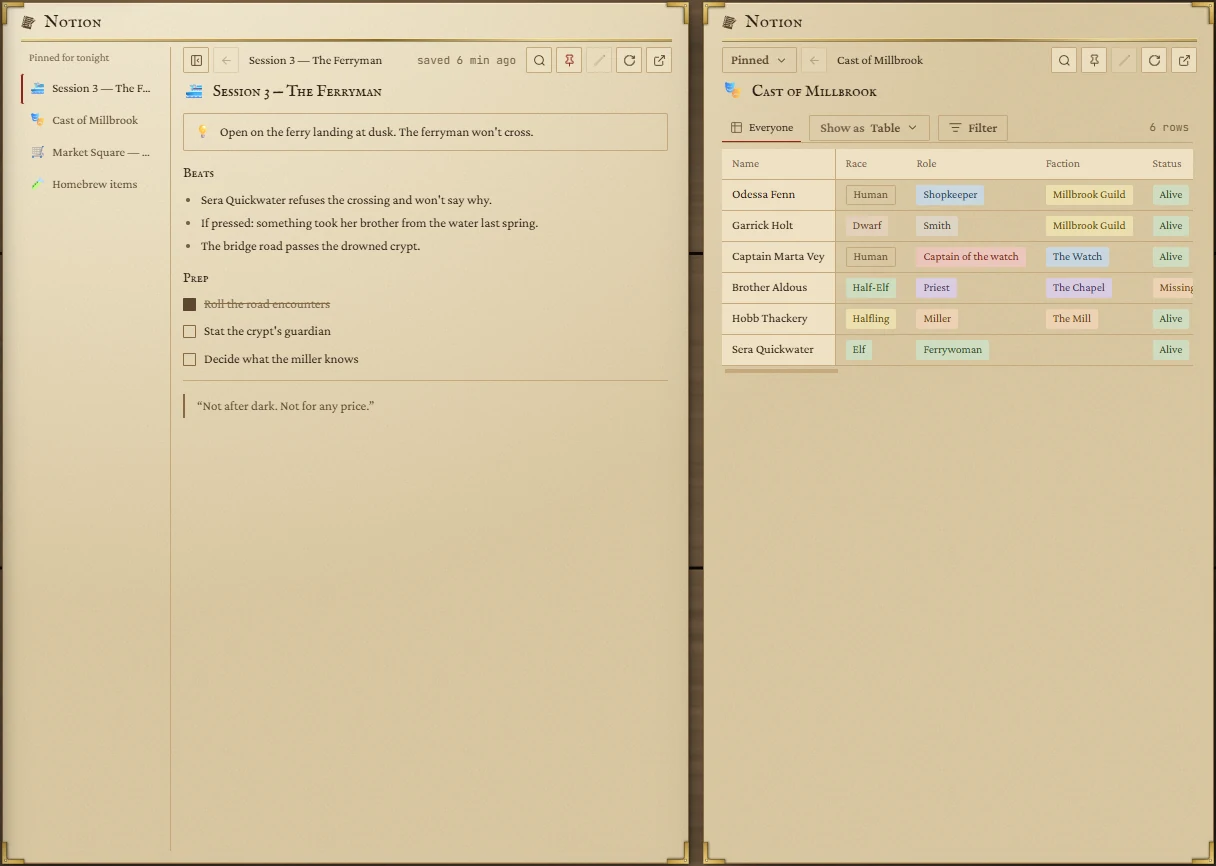
Pages and databases from your own Notion workspace, read on the board in WyrmWright's style. Pin tonight's pages down the side; anything you've opened stays readable even when the internet doesn't.
- Default size
- 7 × 8 (smallest 4 × 4)
- More than one
- Yes
Connecting Notion
The first Notion tile you add (or the first visit to People, Places or the Notes page's Notion view) asks you to connect:
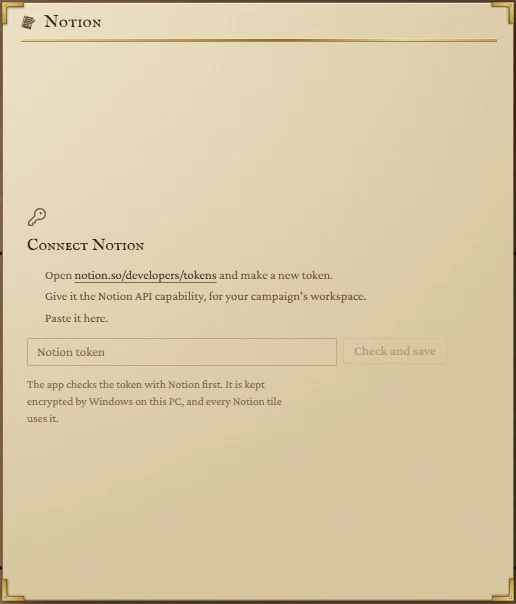
- Open
notion.so/developers/tokens(the link in the tile opens your browser) and make a new token. - Give it the Notion API capability, for your campaign's workspace.
- Paste it into the tile and press Check and save.
The app checks the token with Notion before keeping it. It's stored encrypted by Windows on this PC, never shown again, and shared by every Notion tile and page, so you only do this once.
Finding and pinning pages
- The search button (Find a page) searches page and database titles across your workspace as you type. You can also paste a Notion link, including a link to a database view.
- The pin button pins the open page to Pinned for tonight down the side. Click a pin to open it. On a narrow tile the list folds into a Pinned menu.
- Links to other Notion pages open inside the tile; Back returns. Web links open in your browser.
- Refresh from Notion reads the page again; Open in Notion opens it in your browser.
Offline and saved copies
Every page you open is saved on your PC, pictures included, and shown instantly the next time; the tile then checks Notion for changes. The status in the bar says how fresh it is: saved 3 min ago, or Offline · saved … when Notion can't be reached. So a page you opened while preparing is still there at a table with no internet.
Databases
A database shows its Notion views as tabs, and the rows in the layout of your choice:
- Show as: Table, List, Board, Gallery, Calendar or Timeline. The one Notion uses is marked as in Notion.
- Click a column heading to sort; click again to reverse, and once more to go back.
- Filter narrows the rows: choose a column, a condition and a value; add as many as you need.
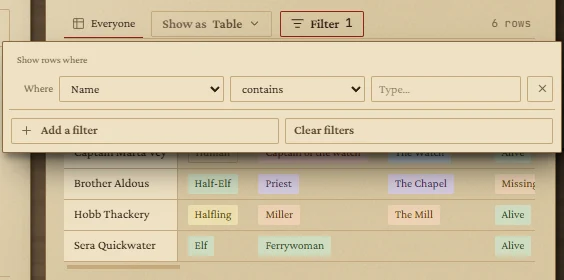
These choices are remembered for each tile and change nothing in Notion. Click a row to open it, with its columns above its page. Rows can be dragged onto a Notes tile as @names.
Editing (optional)
Press the pencil (Edit this page) to change the page from the tile. You can edit paragraphs, headings, list items, to-dos and quotes (bold, italic and links are kept), tick boxes, add a line, and change a database row's columns: choices, tags, checkboxes, text, numbers, links and dates. Changes save a second after you stop typing. Esc stops editing.
- Tables, images, callouts, toggles and some columns (formulas, relations) can't be edited from the tile; hovering says so.
- Each save checks Notion first. If someone changed that line in Notion after you opened the page, nothing is written, and the tile shows both versions so you can copy yours.
- Editing needs Notion to be reachable; the saved copy is read-only.
Homebrew from Notion
Hover a heading or a bold line naming an item and press Add to Trades to make it a homebrew item on the Trades page, with its price, rarity and description read from the text under it.
What isn't shown
Files, PDFs, video and audio show as a line pointing to Notion. Some blocks Notion doesn't share with apps show as a placeholder. Very long pages stop with a note that the rest is in Notion.