App launcher
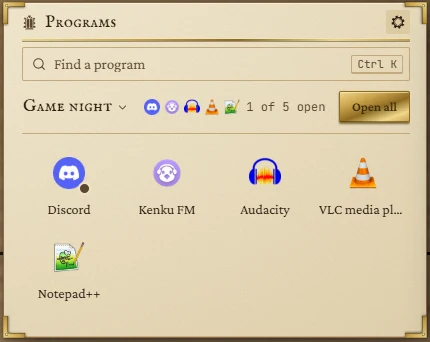
A shelf of buttons that open your other programs, folders and files: your voice chat, your soundboard, your music player, your campaign folder. A dot shows which are already open, and a set opens several at once for game night.
- Default size
- 4 × 3 (smallest 2 × 2)
- More than one
- Yes, each with its own programs
- Windows
- Works with Windows programs and shortcuts
Adding programs
It's listed as App launcher in Add widget; on the board its title reads Programs. An empty tile offers Add a program (it's also at the foot of the tile's settings). The panel lists your Start menu: type to find a program and press Add.
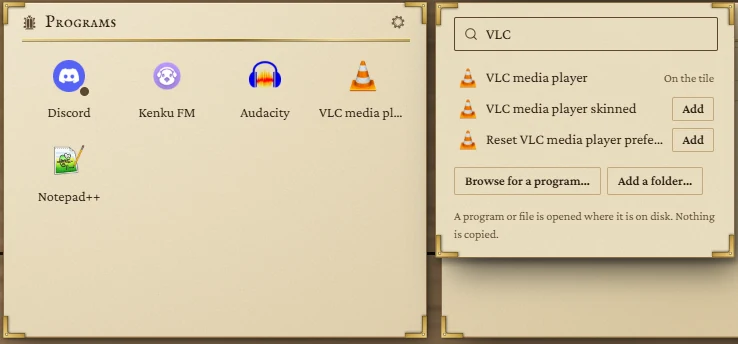
- From the Start menu is the best way: a Start menu shortcut keeps any settings the program starts with.
- Browse for a program… picks programs, shortcuts or any file from disk (up to 30 at once).
- Add a folder… adds a folder, which opens in File Explorer.
Nothing is copied: each button opens the program or file where it is. A tile holds up to 60.
Using it
- Click an icon to open it. If it's already open, the click brings its window to the front instead.
- A dot on an icon means that program is open.
- If a program has moved or been uninstalled, its icon shows a question mark; click it to find it again, keeping its name and place.
- Right-click an icon (or press the Menu key) for: Open or Bring to front, Open another copy, Show in folder, Edit…, and Remove from tile (which you can undo).
Programs open in their own windows and keep running if you close WyrmWright.
Editing a button
Right-click and choose Edit… to change the name shown on the tile, point it at a different file (Find…), open its folder, choose whether clicking an open program brings it to the front or opens another copy, and move it into a group.
Settings
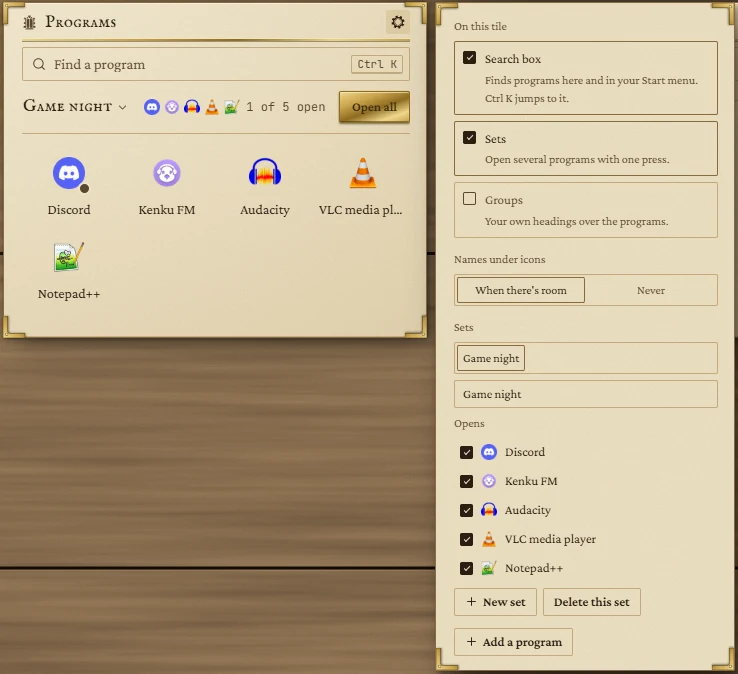
Press the gear in the title bar. Search, sets and groups start switched off; turn on what you'll use.
| Setting | What it does |
|---|---|
| Search box | A box on the tile that finds programs on the tile and in your Start menu. Ctrl + K jumps to it. Use the arrow keys and Enter to open; Ctrl + Enter opens another copy. A Start menu result that isn't on the tile can be pinned to it. |
| Sets | Open several programs with one press. Name a set and tick what it opens; the tile then shows the set with Open all and how many of them are open. Up to 12 sets. |
| Groups | Your own headings over the programs. Drag programs between groups while you edit the board. Up to 12 groups. |
| Names under icons | When there's room or Never. |
Small tiles
As the tile shrinks, it makes room in stages: the search box folds into the title bar, names disappear, icons get smaller, and the set becomes a single button. Only then do extra programs hide behind a +N button that lists them all.