Book
A PDF open on the board: your rulebook, an adventure, a handout. The tile remembers its page, and your bookmarks and highlights follow the book wherever you open it. The file stays where it is on your disk.
- Default size
- 6 × 9 (smallest 4 × 5)
- More than one
- Yes, each with its own book and page
- Shares with
- The Books page
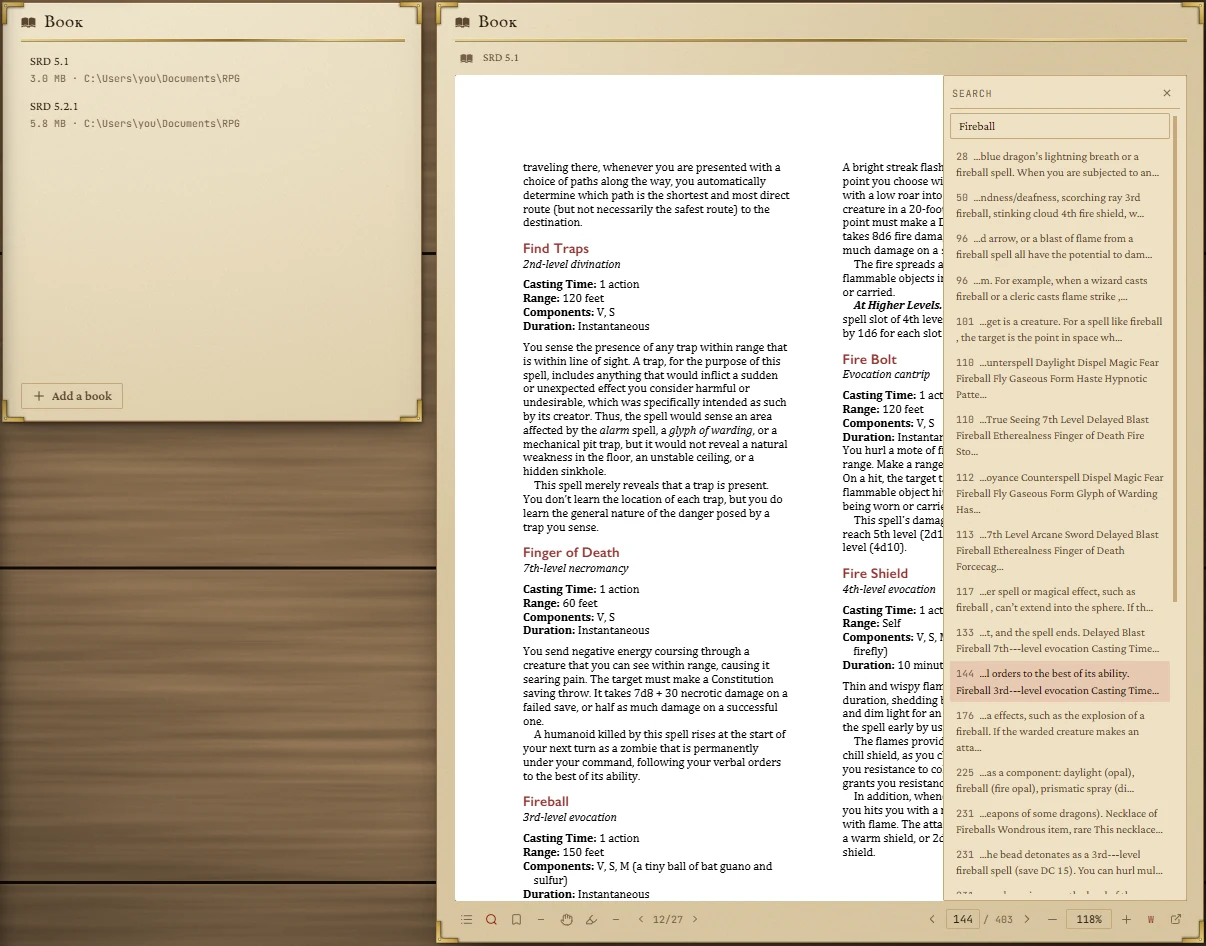
Putting a book on the tile
An empty tile is a shelf. Press Add a book and pick one or more PDFs; click a book to open it. If you add exactly one book to an empty tile, it opens straight away.
- Nothing is copied: the app remembers where each file is. If you move or delete it, the shelf marks it missing — moved or deleted.
- The cross beside a book (Forget this book) takes it off the shelf. The file on your disk is untouched.
- Books added here appear on the Books page too, and the other way round.
To go back to the shelf, press the books icon beside the title at the top of an open book.
Reading
Pages scroll as one long reel, and the page number follows as you go. Two-column rulebooks read well at fit to width; double-click a column to fill the tile with it, and double-click again to go back.
- Ctrl + scroll zooms around the pointer.
- Drag with the middle mouse button, or hold Space and drag, to move the page.
The bar

| Button | What it does |
|---|---|
| Contents | The book's own table of contents, if it has one. Click an entry to jump there. |
| Search this book | Type two letters or more. Hits are listed with their page and a snippet; the arrows step through them. |
| Bookmark ribbon | Marks the page you're on. The count beside it opens the list of bookmarks. |
| Hand | Drag the page around. Esc puts it down. |
| Highlighter | Pick it up, and every selection you make is highlighted. Hover it to change colour: yellow, green, blue or pink. The count beside it opens the list of highlights. |
| Page | Arrows step a page; type a number to jump. |
| Zoom | Minus, plus, or type a size (150, 150% or 1.5). From 25% to 600%. |
| W / PG | Fit the width, or the whole page. |
| Open in its own window | Pops the book out into a window of its own, for a second screen. See Books. |
Highlights and bookmarks
Without the highlighter in hand, select some text and a small colour picker appears beside it: choose a colour to highlight it. With the highlighter in hand, every selection is highlighted at once.
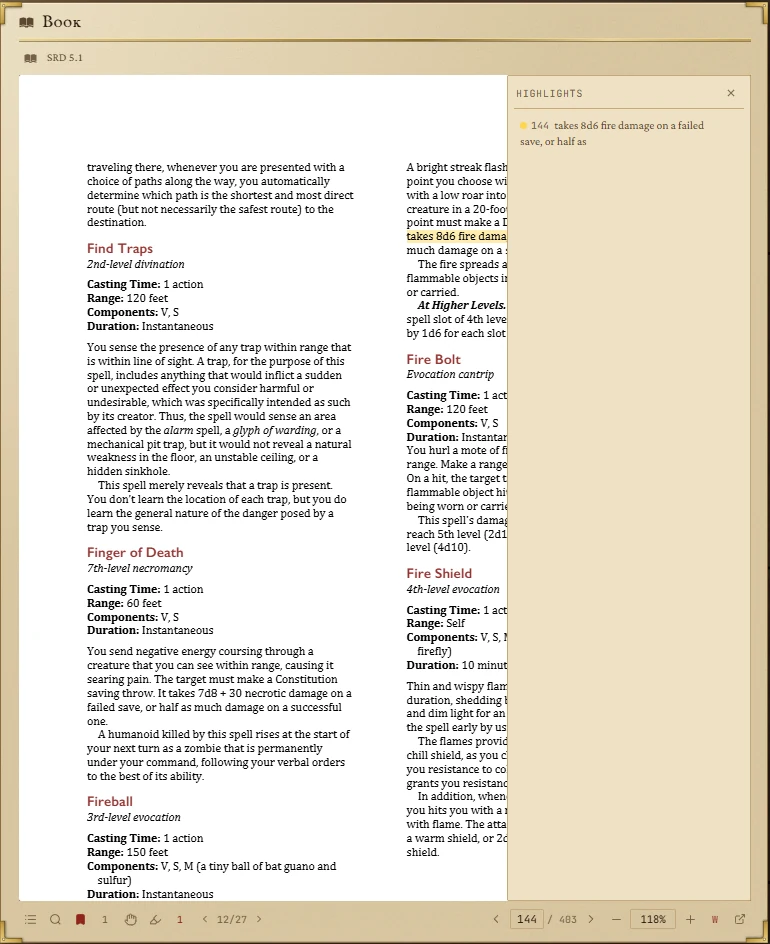
Bookmarks and highlights belong to the book, not the tile: they show in every tile and window where that book is open, and on the Books page.
What is kept
Each tile remembers which book it has open, its page, its zoom and its fit. The book list, bookmarks and highlights are kept for the whole app.