The players' window
A second window for the table to look at: put it full screen on a TV and it shows the scene, the turn order, a picture or a map. The same panel opens the table to WyrmWright Player, so your players can sit down at their own laptops, and to phones that only want to watch.
- Where
- The Players see pill, top right of every page
- Works with
- WyrmWright Player, any phone with a camera
- Set up once
- Scene card…, Table and seats…
The pill and its panel
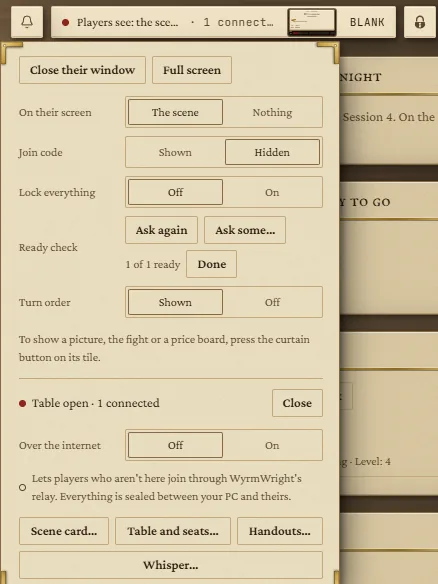
The pill in the title strip says what the players are looking at (Players see: the scene) beside a small live copy of their screen. While the table is open it also counts who is connected. Click it to open the panel.
| Control | What it does |
|---|---|
| Open the players' window / Close their window | Opens their window, or closes it. It opens on a screen the main window isn't on, if you have one, and comes back where it was (and full screen or not) the next time you start the app. |
| Full screen | Fills that screen. F11 or a double-click on their window does the same, and Esc leaves it. |
| On their screen | The scene (the scene card) or Nothing. |
| Blank | The button beside the pill. One press clears their screen from any page, for when they should be looking at you; Unblank brings it back. |
| Join code | With the table open, puts the code phones scan on their screen, or hides it. |
| Lock everything | With the table open: players can only look (see Locks). |
| Ready check | With the table open: asks seated players whether they're ready (see Ready check). |
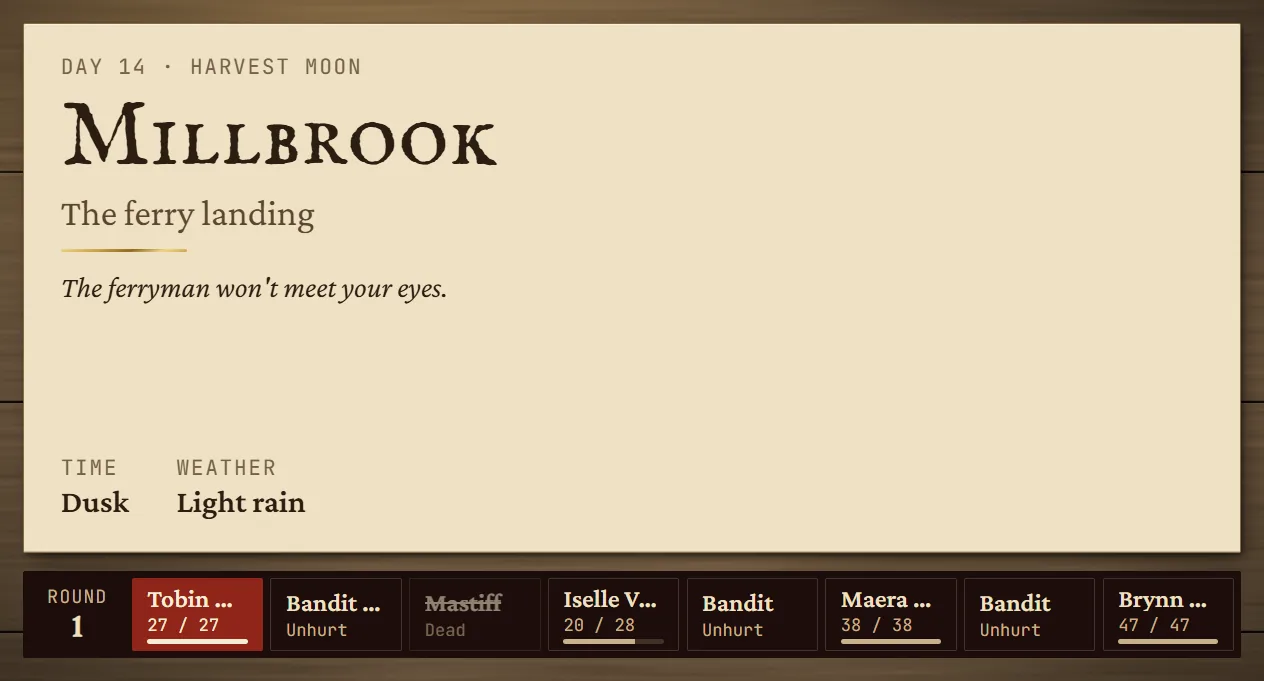
| Turn order | Shows the fight along the bottom of their screen while one runs. |
| Table open / closed | Lets players join, or ends every connection (see Opening the table). |
| Over the internet | Lets players who aren't in the room join (see Players over the internet). |
The note under the switches tells you when something won't show: an empty scene card means a bare table, and the turn order waits until someone the players can see is in the tracker.
What can go on their screen
The scene card is what they see by default. Everything else is sent from where it lives:
- A tile: the curtain button in the title bar of an Image, Slideshow, Initiative, Price Board, Timer or Dice tile asks where: On the stage (the middle of their screen) or Beside the stage (a panel to one side, so the scene stays up). Sent, the button says where it is; press it again to take it off. Sending opens their window if it was closed. See The board.
- A map under its fog, from Places › Maps.
- The panel says what is beside the stage and has a Take it away button for it.
The scene card
Scene card… holds the words on the TV: Place, Where in it, Day, Time, Weather and A line to read. They save a moment after you stop typing. Tick Day, Time and Weather follow the World clock and those three come from the World page's clock and weather instead, changing on the TV whenever you move time on; untick it to type your own.
Opening the table
Press Open in the panel. While the table is open:
- WyrmWright Player on a laptop on the same network finds the table by itself, listed under the table's name. A player can also type your computer's address.
- Phones scan the QR code in Table and seats… (or on the TV, with Join code: Shown). A phone opens a page in its browser that shows exactly what the TV shows, and keeps up as it changes. Phones only watch; they don't sit down. If a phone can't reach the code's address, the dialog suggests other addresses to try.
Close ends every connection; the next time you open the table it has a new code. Closing also takes the join code off the TV.
Letting players sit
When someone picks a character in WyrmWright Player, you are asked first. The taskbar button flashes if you're in another program.
Let them in seats them. Not now, Esc or a click outside the box says no, and the player is told so and can ask again. A seated player sees their own character and what the players' window shows, nothing of yours.
Table and seats
Table and seats… has three tabs.
Seats
- Table name: what Player apps list your table as.
- The QR code for phones, and its address.
- Seats: each character someone has joined as, the computer they're on, whether it's here now (at the table or over the internet) or when it was last seen, and how much has been sent to it this session. Remove frees the seat; that computer has to ask again.
- Show players each other's hit points as Words (fine, hurt, bloodied or down) or Numbers. Each player always sees their own numbers, and foes are always words.
Locks
Which parts of each character a player may change from their seat: one row per part (Level, Max HP, AC; Ability scores; Current and temp HP; Hit dice, slots; Gear and coin; Conditions; Notes; Backstory and goals), one column per character, and an Everyone column that sets the whole row. A locked part isn't a no: the player asks instead, and the request comes to your bell.
Lock everything, here and in the panel, is the cutscene switch: players can only look until you turn it off. It also stops them starting a vote.
What players see
Every page of the Player app shows unless you turn it off here. Dashboard, Character and Rules are always on. A page turned off is hidden, with its cards, for the whole table; nothing on it is lost, and it comes back when you turn it on.
Chat and votes turns off players' Chat and Party vote, for the whole table. With it off, players get no vote, whisper or mention pop-ups, and no note about new Chat lines over their Settings. Everything else, the players' screen, Initiative, Clocks and the Party log among it, still shows.
Requests and the bell
The bell left of the pill is gray while nothing waits and shows a count when a player asks for something. A note in the corner says so as it arrives, with Open the list.
- A raised hand waits by the character's name. Acknowledge lowers it and tells the player you saw it; the cross only takes it off your list.
- A request (a rest, a purchase, an item or coin given, a change to something locked, the next level, a portrait, a character brought from the join screen) says what it would change, in numbers. A rest's numbers can be changed before you press Accept. Turn down… lets you send a word back.
- After this fight puts a request aside while a fight runs; ending the fight brings it back.
- Once nothing waits, the list shows what you answered since the last session.
A request still waiting at the end of the night is carried over onto Tonight for the next session.
Handouts
- Open Handouts… and give it a title.
- Write what it says, add a picture (Add a picture… for a file on this PC, or paste an https link), or do both. Players see the picture with your words under it.
- Leave Everyone ticked, or untick it and pick characters.
- Choose Now and press Send: it reaches each player's Handouts at once and stays there for the campaign. Or choose Keep for later, pick a session or an encounter, and press Keep it: it waits on Tonight (and with that encounter) with a Send button.
Under Sent, each handout shows who it went to, when, and whether it has been opened. Take back removes it from their screens. An Image tile's curtain button also offers As a handout….
Whispers and chat
- Whisper… (in the panel while the table is open) writes to one player, several, or everyone. With one picked, your thread with them shows above the box, their whispers back included.
- Chat… on the At the table card (on Tonight and Party) is what the table says to everyone. Read it there and say something back, or keep it on the board with a Chat tile.
- Pin for everyone pins a message at the top of each player's chat. A whisper's pin shows only to that player.
Ready check
In the panel, Ask everyone puts a Ready button on every seated player's screen; Ask some… asks only the seats you tick. The panel counts the answers (1 of 1 ready), counting only seats still at the table. Asking more while a check is open adds them to it; Done ends it.
Asking for rolls
Ask for a roll on the Party page asks for a check, a skill check, a save or a tool check, with a DC.
- Show DC to players is off unless you tick it. Group check judges the party as one; Secret: only I see the results keeps the outcome to you, out of the players' Party log too.
- Under Who rolls, each character says whether they're at the table (their app gets a card and they roll their own) or not at the table (you type the number).
- Results fill in as they come, with the die, the total and pass or fail. You can type over any number.
A concentration save on the Initiative tracker can ask the player the same way.
Players over the internet
Turn Over the internet on and a player who isn't in the room can join over the internet. Everything is scrambled so only you and your players can read it. It starts when the table is open and goes when it closes.
- With the table open and the panel showing it is connected over the internet, press Invite players….
- Choose how long it works, 1 hour or Tonight (6 h), and press Make the invite.
- Send the link or the short code to your players, in Discord, a text or an email. Anyone who uses it still waits for your yes, as at the table. Take it back ends it early; New invite makes another.
A player who has sat down before comes back without a new invite. Very large pictures are sent as a smaller copy; one too large even for that is listed in the panel with Show me, and players over the internet are told it's too large.
Before the session, open the Players see pill and press Open so your players can join. Put the scene card on the TV with the place and the weather. When the fight starts, the turn order appears along the foot of the screen, with foes shown as words, never numbers.