The Player app
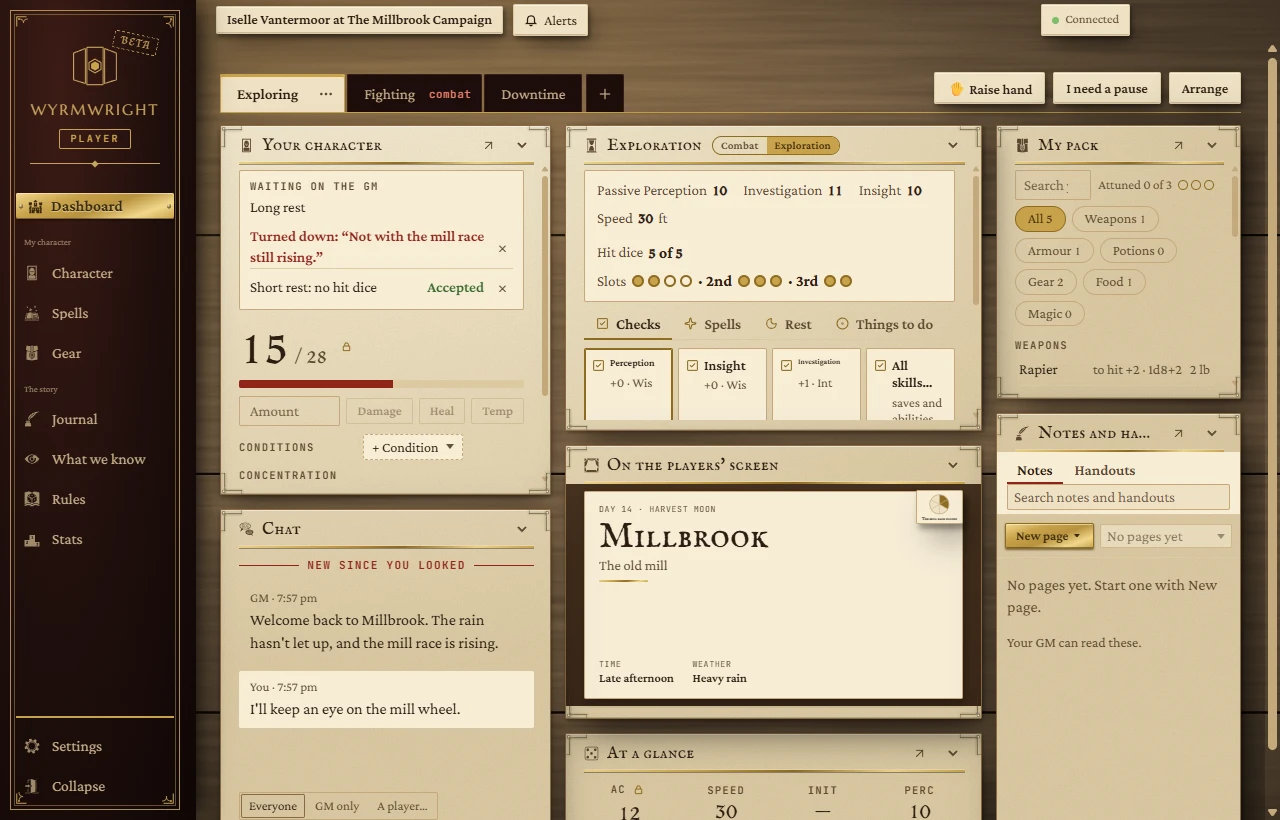
WyrmWright Player is the free app for the people at your table. It joins the GM's WyrmWright, shows each player their own character and what the players' screen shows (nothing of the GM's), and lets them roll, track their hit points and slots, take notes and talk to the table from their own computer.
- Runs on
- Windows
- Joins
- On the same network, by address, or over the internet with an invite
- Keeps
- No campaign of its own: your character lives with the GM
What it is
- For players. The GM runs WyrmWright; each player runs WyrmWright Player. Your GM's side of it is in The players' window.
- Your own character, nobody else's. You see your character sheet in full and what is on the players' screen. Other characters show only what the table shows; foes show only words like Hurt or Bloodied. The GM's notes never leave their computer.
- Changes go to the GM's app. When you take damage, spend a slot or add an item, the change goes to your GM's computer, where your character is kept, and shows on their Party page with an Undo.
- A phone or tablet app is on the roadmap. Until then a phone can watch the players' screen from the QR code your GM shows.
Installing
- Run the installer,
WyrmWright Player Setupwith the version number after it. - It installs for everyone on the computer, to
C:\Program Files\WyrmWright Player. That folder can't be changed.
The Player app is a separate program from the GM's WyrmWright, with its own entry in Apps & features. It never upgrades or removes WyrmWright, so a GM can have both on one computer. Its own data (this computer's name, the tables joined, your seats and how you arranged your boards) is in C:\Users\you\AppData\Roaming\WyrmWright Player.
Joining a table
First your GM opens the table: in WyrmWright, the Players see pill at the top right, then Open. Then, in the Player app:
On the same network
When your GM opens the table, it appears under Tables on this network within a few seconds. Press Join.
By typed address
If the table doesn't show up (some home and office networks stop the app hearing it), ask your GM for their computer's address on the network and type it after pressing Type their address instead, such as 192.168.1.20, then press Join. Type just the numbers and dots, nothing after them.
By invite, over the internet
For a player who isn't in the room, your GM turns on Over the internet and sends an invite: a link, or a short code such as T7QK-9MXD-4HRP. Paste either under Join with an invite and press Join. It goes over the internet, scrambled so only you and your GM can read it; the strip says Connected over the internet. An invite works until the time your GM chose when they made it. If you are on the GM's network after all, the app joins there instead.
The table key
The first time you join, the app remembers the table's key, a short code shown as table key NMEV-K3PA on the next screen. Next time, a computer claiming to be that table with a different key is refused, so nobody can pose as your GM's table.
Picking a character
A table you join for the first time offers three ways to sit down. Whichever you pick, your GM says yes first, and a character you bring or make joins their party.
- Pick a character your GM made: the card says how many are free. Press one and you're in. A character someone else is already sitting as says Seated on another computer.
- Bring in your character: drop or choose a character sheet PDF with its boxes filled in (the one D&D Beyond's Export to PDF saves, for example) or a WyrmWright character file saved at another table, or type one in from a paper sheet. Check what was read, then press Ask your GM. Nothing is sent before that.
- Make a new character: step by step, as D&D Beyond's quick builder does. Pick a class, a background and a species from galleries, with suggested names and a token; then abilities, equipment and, for a caster, spells. The tools your class, background and species give come with it; where one gives a choice (a Bard's three instruments, a Soldier's gaming set, the Skilled feat's three skills or tools), you pick on its card. A Languages card says what you know already and where it comes from, and you pick the rest: in 2024 rules everyone knows Common and two Standard languages of their choice (a Rogue Thieves' Cant and one more, a Druid Druidic); in 2014 rules your race gives its own, and a Human, a Half-Elf or an Acolyte picks more. The app does the sums, using your table's rules, and sends the finished sheet to your GM.
Bringing in and making a character need a table that takes characters of your own; an older WyrmWright offers only the first way.
The GM lets you sit
The screen says Asking the GM and waits. Stop asking takes the request back.
When your GM presses Let them in, you are seated and the app opens on your Dashboard. If they press Not now, you are back at the list with The GM said not this time (or the reason they typed), and can ask again.
Coming back next time
Your seat is kept on this computer. Sitting down as the same character again doesn't need the GM to say yes a second time.
- Opening the app between sessions shows your table as you left it, under a Table closed bar with the date of the last session. Your sheet is read only, as of then; notes and your journal can still be written, and go to the table when it opens. Handouts can be read.
- When your GM opens the table, the app joins it again by itself, within half a minute or so, and you are back in your seat.
- If the table goes away mid-session (the GM closes it, or the network drops), the strip says Rejoining… trying again in 7 s and the app keeps trying. Changes you make meanwhile wait and go, in order, when the table is back.
More than one table
Each campaign your GM runs is a table of its own, and so is every other GM's. Once you have joined one, the first screen becomes Your tables: every table this computer has joined, with the character you sit as there. Being Iselle at one table and someone else at another never mixes.
- A table your GM has open on this network shows a green dot and Rejoin. One that isn't open shows Waiting, with Try now for a table you joined by address. One joined over the internet is tried there.
- Join a new table… brings back the joining choices.
- Forget a table… puts a Forget button on each row; forgetting one removes it and your seat there from this computer.
- To get up from a table, use Leave the table… in Settings. Between sessions, Join another table on the closed bar takes you to Your tables without getting up: the closed table opens on its copy again next time you start the app.
Maera's player has the Player app on her laptop. She opens it, types Sam as what her GM should call her, and presses Join when your table appears on the network. She picks Maera Coldwater from the characters you made, you press Let them in, and she's seated on her Dashboard.