Campaigns and backups
Keep each of your games separate: its own party, notes, boards, players' seats and house rules. Switch between them from the title strip, and back each one up to a single file you can restore or take to another computer.
- Where
- The campaign name, top left; Settings › Campaigns and Backups
- Open at once
- One campaign
Switching campaigns
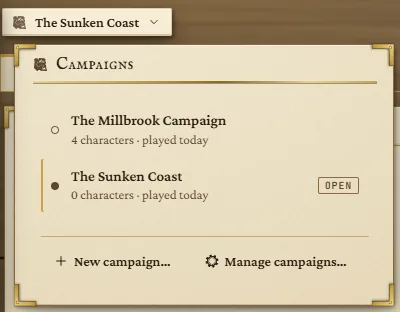
Click the campaign's name at the top left of any page. The menu lists every campaign, with how many characters it has and when it was last played. Click one to open it: WyrmWright restarts in that campaign, with its boards and tracker as you left them. While it switches, a stand-in in the campaign's theme holds the place of each window, the players' window included, until the new one is up.
New campaign… makes one; Manage campaigns… opens Settings › Campaigns.
A new campaign
New campaign… (in the campaign menu, or on Settings › Campaigns) opens a page of short steps over the table. Nothing is made until the last step, and Cancel takes you back to where you were.
- Start from:
- A fresh campaign: the book's rules and the standard boards.
- Copy from another campaign: tick what to bring (its boards and tile layouts and its house rules and dice switches to start with; roll tables and homebrew items, prices and trades if you want them). Its NPCs, places, notes, sessions and encounters stay behind.
- A campaign backup: a
.wyrmbackupfile, opened as a new campaign alongside the ones you have. Its party, notes, boards and house rules all come along, so the next step is only its name.
- Name and rules: the campaign's name, the table name players see in WyrmWright Player, which edition of the rules it plays, and how characters level.
- House rules: the table's own ways, each beside the book's (marked the book).
- Party: bring characters from another campaign (they are copied, not moved, and start at full hit points), add new ones, or leave it for your players to make their own in WyrmWright Player and send to you.
- Check and create: everything you picked, in one list. Press Create and open. WyrmWright saves what's open and restarts in the new campaign, on its Dashboard.
Your group starts a second game set in the same world. Choose Copy from The Millbrook Campaign and leave its boards and house rules ticked, call the new one The Sunken Coast, then on Party bring Brynn and Tobin across. They arrive at full hit points with your Millbrook boards ready, while Millbrook keeps its own copies of them.
What each campaign keeps
| Shared by every campaign | Only in this campaign |
|---|---|
| Theme and app settings | Party, NPCs, people and places |
| The launcher | Notes, handouts, sessions, fight reports |
| Books and SRD rules | Encounters and roll tables |
| Notion sign-in | Seats and the table name |
| My creatures (your own monsters) | House rules and dice switches |
| The screen lock | Notion databases, boards and tile layouts |
The World page (calendar, clocks, rumors) belongs to each campaign too.
Managing campaigns
Settings › Campaigns lists each campaign with its size and when it was last backed up. Open switches to it, Rename renames it, and its ⋯ menu has:
- Duplicate: a copy of the campaign.
- Back up now.
- Show in folder: each campaign is a folder of its own.
- Delete…: type the campaign's name to confirm. A last backup is made first and kept in your backup folder, so you can bring it back with Restore.
Backups
- Back up this campaign: the campaign's data, its pictures, videos and handouts, its rules, tile layouts and player seats, and its Soundboard and timer sounds, in one file.
- Back up everything: every campaign and the shared settings (the theme, books, launcher and My creatures), for a new computer or before a big update.
- Back up to: the folder backups go in. Change… picks another. If the folder can't be reached, backups wait in WyrmWright's own folder until it is there.
- How often: Only when I ask, Every day or Every week, each campaign the first time it is open that day, so a campaign you didn't play isn't copied again. Tick Also when I close WyrmWright for one more each time you close it. Nothing runs while WyrmWright is closed.
- Keep: how many of each campaign's backups to keep. Older ones WyrmWright made in that folder are deleted, each campaign counting its own; only backups that passed their check count, and the last one of a deleted campaign is kept.
- Include my Notion sign-in in Back up everything: off unless you tick it. Only a Back up everything file holds the sign-in, and it only works for your Windows account on this computer. A campaign's own backups never hold it, so restoring a campaign keeps the sign-in you have now.
Each backup is checked after it is made; the card says checked with its size and what's in it.
Restoring
Under Backups in this folder, pick the campaign (or All) and press Restore… on a backup, or Restore from a file… for one elsewhere. Before anything happens you see the backup beside what you have now, line by line. A restore replaces only that campaign, the players' notebooks and what they shared included. What you have now is backed up first, always, so a restore can itself be undone. Restore and restart finishes the job as WyrmWright starts again.
A copy you can read
Under the Backups card, Save a copy… saves the campaign as plain pages any notes app can open, such as Obsidian: your notes, recaps, people, places, quests, timelines and the World, with your maps' pictures. Tick what goes in, then pick a folder; each copy goes in a new folder named after the campaign and the day, so an earlier one is never written over. The Notes page's Save a copy… button brings you here too.
Everything goes in unless you tick Leave out what the players haven't seen. Left off, the secret parts are marked (hidden from players); ticked, they are left out, so the copy can go to the table. WyrmWright can't open a copy again: to keep the campaign itself safe, use a backup.