Maps
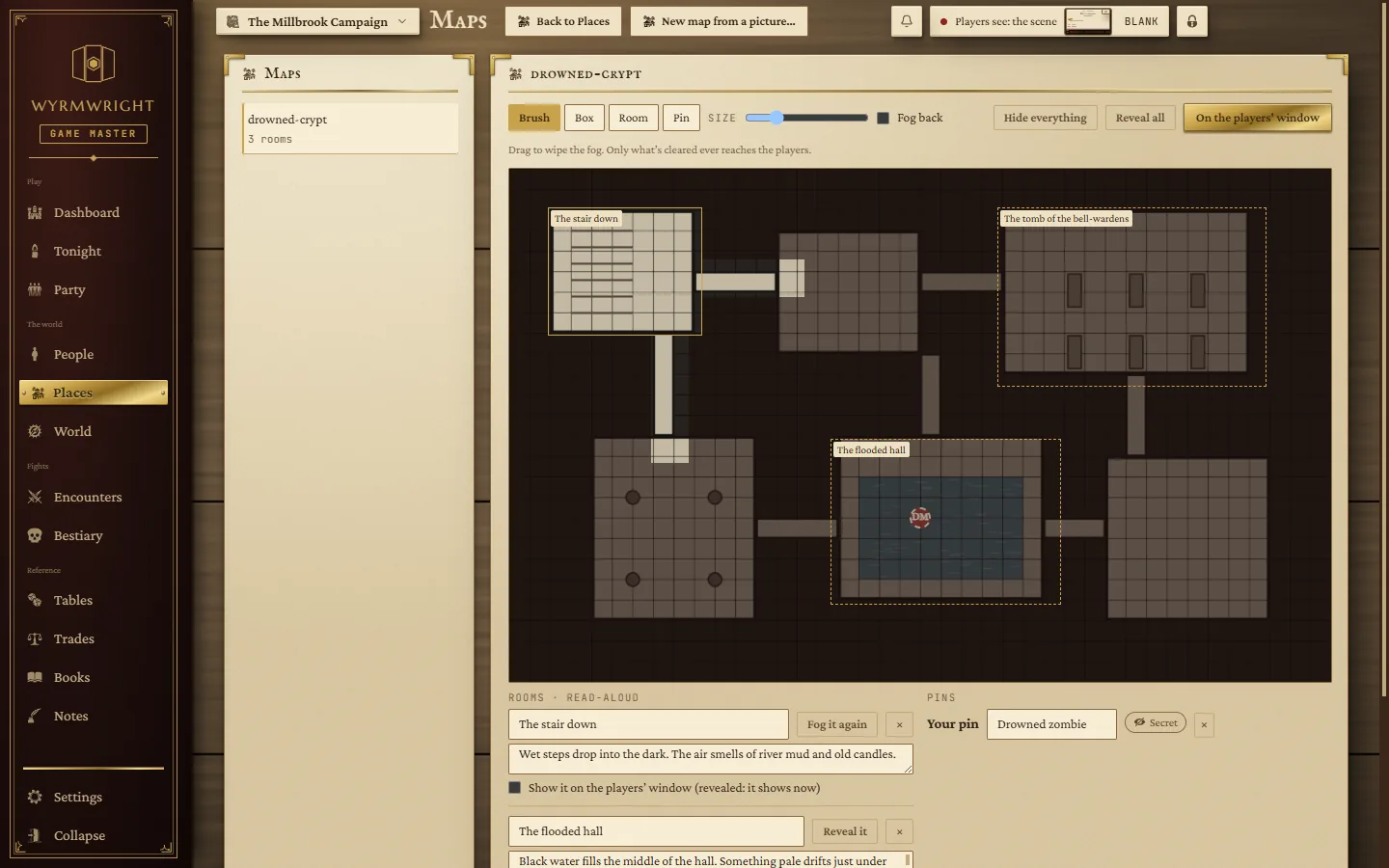
A map of a dungeon or a town under fog of war. You see the whole picture; the players see only what you clear, on the players' window and in their app, with a line to read aloud as they walk into a room.
- Where
- Places › Maps
- Needs
- A picture of the map, on this PC
- Works with
- The players' window, WyrmWright Player
Making a map
- On the Places page, press Maps in the title strip.
- Press New map from a picture… and pick an image (not a video). The map takes the file's name.
- It starts fully under fog.
Your maps are listed on the left with how many rooms each has. Back to Places returns to the atlas; Delete… at the foot of a map deletes it.
Clearing the fog
| Tool | What it does |
|---|---|
| Brush | Drag to wipe the fog. The Size slider sets the brush. |
| Box | Drag a box to clear all of it. |
| Room | Drag a box round a room to outline it once. The room is listed below, and Reveal it clears it in one click. |
| Pin | Click to drop your pin. It's secret until you show it. |
- Tick Fog back and the Brush and Box put fog back instead of wiping it.
- Hide everything fogs the whole map again; Reveal all clears it.
Only what is cleared ever reaches the players: the app cuts the picture before it leaves your PC.
Rooms and read-aloud
Each room you outline gets a name and a box for text to read aloud when the party enters. Under it:
- Reveal it clears the room; Fog it again covers it. The cross removes the outline (the fog stays as it is).
- Show it on the players' window: once the room is revealed, its read-aloud shows on the players' window under the map.
Pins
Your pin shows as GM on the map. Give it a label, and press Secret to make it Shown to the players. The cross removes it. Players drop pins of their own on what's cleared, from their app; theirs are listed here under their character's name.
The battle grid
Tick Battle grid to lay squares over the map; Line up… fits them to the squares drawn on the picture. Three more tools come with it:
| Tool | What it does |
|---|---|
| Move | Drag someone from In the fight onto the map, or drag a token to move it. Or click a token and use the arrow keys: each press moves it one square, up, down, left or right, counted as a drag is. Diagonals are by dragging. Off the map, or ×, takes it off (not out of the fight). |
| Ruler | Drag to measure, square to square. Shift and drag again to add a bend. Esc clears it. |
| Area | Pick a spell or a shape on the left, then place it. The left card lists who's in it; Roll for these opens the initiative tracker's several-targets roll with them ticked. |
For a spell with a saving throw, Save DC starts at the spell save DC of the character whose turn it is (8 + proficiency + their spellcasting modifier); type another if you like. The area's label on your map reads, for example, Fireball · Dex save DC 13, and the DC goes with Roll for these. The DC is yours alone: it's never sent to the players' window or their app.
Showing it to the players
Press On the players' window. The map takes the middle of their screen, with only the cleared parts drawn, and the room's read-aloud underneath when you've chosen to show it. As you clear more, their screen follows. Press Take it off the players' window to go back to the scene.
Seated players get the map in WyrmWright Player too, where they can pin what they see.
Make a map of the crypt from its picture with New map from a picture…, then use the Room tool to outline each chamber and write the line to read aloud as the party enters. On the night, show the map on the players' window and press Reveal it on each room as they walk in.