The Dashboard
The page the Player app opens on once you have a seat: your character beside what the table is doing, as cards on a board you arrange yourself. There are two boards to start with, one for exploring and one for fighting, and the app swaps between them when a fight starts and ends.
- Where
- Dashboard, at the top of the navbar
- Boards
- Exploring and Fighting, plus up to ten of your own
- Kept
- On this computer, for each board
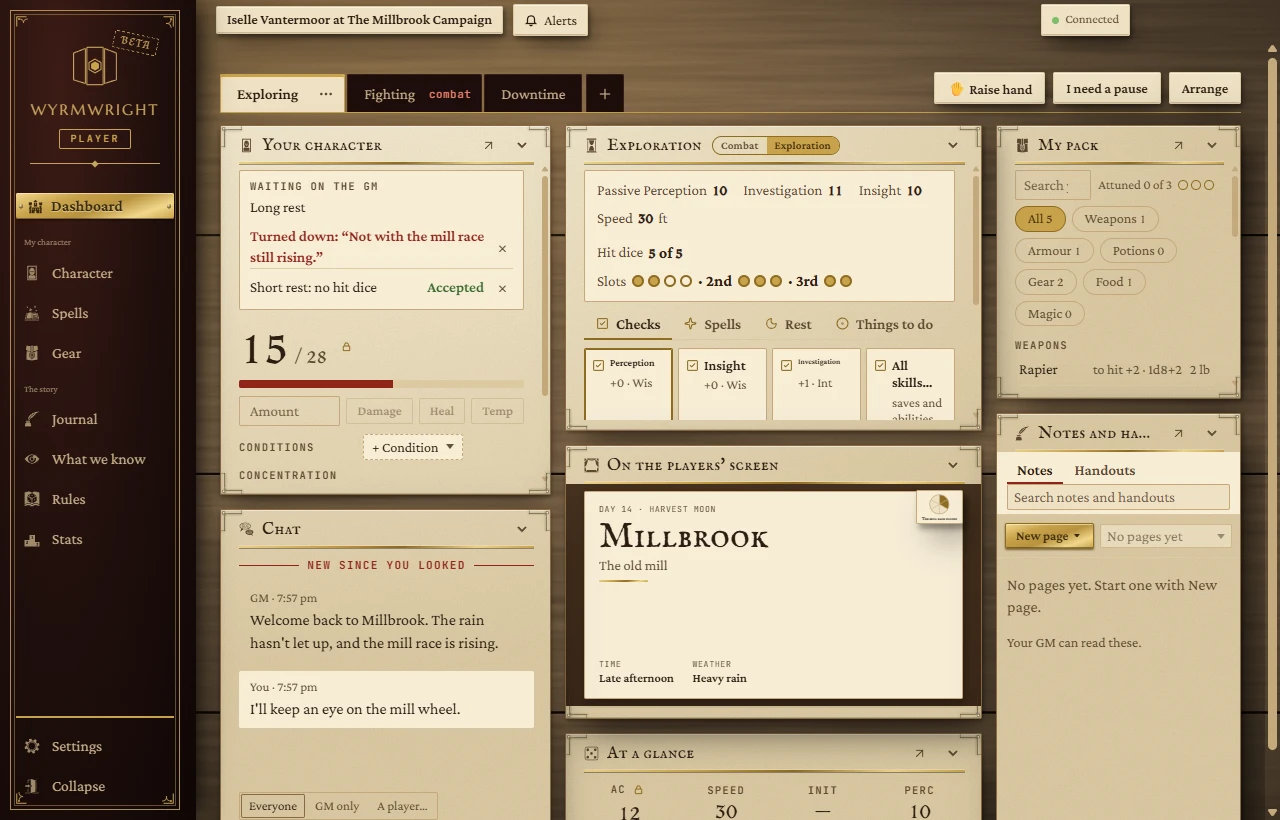
Around the window
- The navbar down the left has Dashboard at the top, then the app's pages in two groups: My character (Character, Spells, Gear) and The story (Journal, What we know, Rules). Settings and Collapse sit at its foot; collapsed, the navbar is icons only, each named when you hover it. Your GM can turn some pages off for the whole table: a page that is off is not in the navbar and its cards leave your boards (they come back, where they were, when the GM turns it on again). Dashboard, Character and Rules are always there. What the table shares (the players' screen, the fight, dice, Chat, the Party log and votes) is on the Dashboard's cards: see At the table.
- A small number on a page's entry means something there is new: Chat lines you haven't read, whispers included (Dashboard, while you are on another page), loot you haven't looked at (Gear), a handout you haven't opened (Journal), a reveal you haven't opened (What we know).
- The strip across the top names your character and the table, has the Alerts button (see Alerts), and shows whether you are connected. When your GM plays table sounds, a sounds chip joins it.
Cards
Every card on a board is the small view of a page. The arrow in a card's head opens its page; the chevron folds it.
| Card | What it shows |
|---|---|
| Your character | Your hit points, big, with boxes to take damage, heal and add temporary hit points (they don't add up, so with some already it asks which to keep, as the book does), your conditions and what you are concentrating on. |
| At a glance | Armor class, speed, initiative, passive Perception and your Inspiration to start with; the sliders in its head choose what it shows. See At a glance. |
| My pack | What you carry and your purse. See Gear. |
| Combat and exploration | What you are (Hidden, Helping, your conditions), and in a fight whose turn it is, what you can still do this turn as tiles, your target, your plan and End my turn. See Combat and exploration. |
| On the players' screen | A copy of what your GM's players' window shows, with the turn order under it. |
| Initiative | The fight as you are allowed to see it. |
| Hit dice and slots | A pip for each hit die and spell slot you have left, and the two rests. |
| Chat | The table's chat and your whispers. See Chat. |
| Notes and handouts | Your notebook and the handouts your GM gave you. See Journal. |
The Exploring board starts with seven: Your character, Chat, Combat and exploration, On the players' screen, At a glance, My pack and Notes and handouts. Initiative and Hit dice and slots start on the Fighting board, and are in Add a card for any other. Twenty-odd more wait in Add a card: Dice, Party log, Spells, Abilities, saves and skills, Attacks, Class resources, the two rests, Companions, Coins, Carrying, Wish list, Party vote, Quests, Story, Timeline, Clocks, Rumors, House rules, What we know, Rules and Inspiration.
Folding a card
Press the chevron in a card's head to fold it down to a strip. The strip keeps one line of what the card holds (your purse and how many items for My pack, for example), and the cards under it move up into the space. A dot on a folded strip means something in it wants a look. Press the strip's arrow to open it again. Folding never changes the board's arrangement: an unfolded card comes back at its own size.
Arranging a board
- Press Arrange at the right of the board's tabs.
- Drag a card by its title to move it. Pull a corner or an edge to resize it. The other cards make room.
- Press × in a card's head to take it off the board. Add a card lists every card that isn't on this board; pick one and it arrives at the bottom, at its usual size.
- Press Done.
Reset layout puts the board's own starting arrangement back, with every card on it. Each board is arranged on its own and kept on this computer, so it is the same next time you sit down.
Boards
The tabs above the board switch between them. Exploring and Fighting are always there; the Fighting board starts with the Combat and exploration card down the left half, the Initiative order across the top of the right half, Your character with Hit dice and slots under it, and the Party log with Chat under it beside them (At a glance, My pack, the players' screen and your notes are below them). The one marked fight is the board a fight switches to.
Boards you arranged before the Table page went stay as you left them. If neither Exploring nor Fighting has Chat on it, a card says once The Table page is gone. Chat is under Arrange > Add a card. with Add Chat, which puts it on your board.
- + at the end of the tabs adds an empty board of your own. Add cards to it from Arrange.
- Double-click one of your own boards' tabs to rename it (Enter keeps the name, Esc doesn't).
- The ⋯ on the tab showing, or a right-click on any tab, has Rename, Move left, Move right, Use for combat, Delete and Your boards…. Exploring and Fighting can be moved but not renamed or deleted.
Your boards… lists every board. Drag a row, or use its arrows, to change the order; type in a name to rename one of yours; pick which one is Use for combat; Delete asks once more before it goes.
When a fight starts
With Switch boards when combat starts and ends on (it is, to start with), the moment your GM starts a fight the app goes to the Dashboard and the fight board, and a note says so with a Stay on… button to go back to where you were. When the fight ends it goes back to the board (and the page) you were on. A board you pick yourself in between stays until the next start or end. Turn the switch off in Your boards… or in Settings › Alerts.
Alerts
What someone else does to you arrives as a card at the top of the window, over whatever page you are on: a whisper, a handout, a mention, someone or somewhere you learned about, a hit or a condition, a gift, a fight starting, your turn. A card with a button (Read, Vote, Open, Show) stays until you press it or its ×. One without counts down along its bottom edge for 12 seconds; pointing at it, or being in another window, holds the count. Up to three show at once, newest on top, then +N more. Your own changes (Undo, Copied, Asked your GM) stay a short note at the foot of the window.
A vote, a whisper, a handout, a level waiting or a You learned about… card closed with × before you answered or opened it waits on the Alerts button in the strip at the top, which then reads Waiting with a count and a soft glow. Open it to find each one with its button (and Abstain on a vote); one you open anywhere, such as a handout in the Journal, leaves it; Alert settings… at its foot opens Settings › Alerts. See Votes and whispers.
The switches are in Settings › Alerts, in four groups: Your turn, What happens to you, When the app is behind, and Boards.
| Switch | What it does |
|---|---|
| Chime on your turn | Plays a chime when your turn starts. Pick which chime beside it; it plays as you pick. |
| Flash the taskbar button | When the app is behind another window, its taskbar button flashes until you look: on your turn, when your GM asks for a roll, and for a handout, a whisper or a vote. Off, it never flashes. |
| Nudge when you're up next | A note when you are next in the turn order, and, if you turn it on, a quiet tick with it. |
| Note when your GM changes your conditions or hit points | A card at the top of the window when your GM gives you a condition or takes one away (with how many rounds it lasts, when they set that), damages or heals you, or gives you temporary hit points, and on the last round of anything timed on you. Your own changes have their own note with Undo. On to start with. |
| Cards and chimes for handouts, whispers and votes | A card with the chime when your GM gives you a handout (Open opens it), when someone whispers to you (Read goes to Chat) and when a vote starts (Vote opens it). No card for a whisper while Chat is on screen, or for a vote while Party vote is. On to start with. |
| Chime when someone mentions you | The chime for a message in Chat that names you. The card saying so shows either way; Show goes to the message. Off to start with. |
| Windows notifications | While the app is behind another window, Windows also shows your turn, a roll your GM asks for, a condition, a new handout and a whisper (never the whisper's words). Clicking one brings the app to the right page. Windows' Do not disturb can hide them. Off to start with. |
| Switch boards when combat starts and ends | As above. |
If the Combat and exploration card isn't on the board you are looking at, a note over the board tells you it is your turn instead.
Your first time at a table
The first time you sit at a table with a character, whether your GM made it, you brought it or you built it, a card says This is your character, with Add a picture (when it has none) and Write their backstory. Show me around then walks through the app in six stops: the Dashboard, Combat and exploration, Dice, Chat and whispers (on the Chat card), the Journal and Alerts. Skip or Esc ends it. Run it again from Settings, under About.
Raise hand
Press ✋ Raise hand beside the board's tabs to get your GM's attention without talking over the table. It becomes Hand up · lower until you lower it or your GM acknowledges it; when they do, Your GM saw your hand shows for a moment.
Before the game, Sam makes a board of their own for downtime: +, then Arrange, and adds Coins, Wish list and Quests from Add a card. Mid-session the GM starts a fight and the app jumps to the Fighting board on its own. Sam folds My pack to its strip to make room for the Combat and exploration card, and when the fight ends the app goes back to the downtime board they were on.